Learn — By WATMM Desk —
Use AI for the idea, keep the DAW for the record: a hybrid workflow
Song generators are good at the first ten minutes of a track and bad at the last ten hours. This guide sets out a hybrid workflow: sketch with AI, move the parts into your DAW as MIDI and stems, then replace, perform and mix the record yourself, keeping a log of which parts a human made. Tool details are from vendor help pages read on 24 Oct 2026.
Key facts
- Suno offers MP3 downloads on all plans, WAV to Pro and Premier subscribers, and MIDI to Premier subscribers for songs made in Suno Studio.
- Ableton Live can convert polyphonic audio, monophonic melody and drums to new MIDI tracks, and its manual recommends isolated, uncompressed recordings with clear attacks.
- The US Copyright Office says prompts alone do not make you the author, but human expression that is perceptible in the result, and creative selection, arrangement or modification, can be protected.
Most producers who use AI well don't let it make the record. They use it to get past the blank page, then do the real work where they always have: in a DAW, with their own hands and ears. This guide sets out that split as a repeatable workflow, with the file formats and checks that make it work.
It's written for people who already finish tracks in Ableton Live, Logic, FL Studio or similar, and want AI in the sketch stage without handing over the song. Tool details are from vendor help pages as we read them on 24 Oct 2026; plans and features change, so check before you rely on one.
Why split the work at all
Producers are already doing this without a name for it. In an r/SunoAI AMA thread about Suno Studio (archived snapshot, March 2026), one user wrote: "I been doing tracks in FL studio then using suno to add the vocal tracks". Others in the same thread go the other way, generating in Suno and finishing in Logic, and report the problems that follow: stems that "don't seem to be tempo-locked" once imported, and newly generated clips that bleed other parts of the song, which one user fixes by separating them again.
Those complaints point to the logic of the split. Generators are fast at ideas and weak at control. A DAW is slow at ideas and strong at control. Put each where it is good.
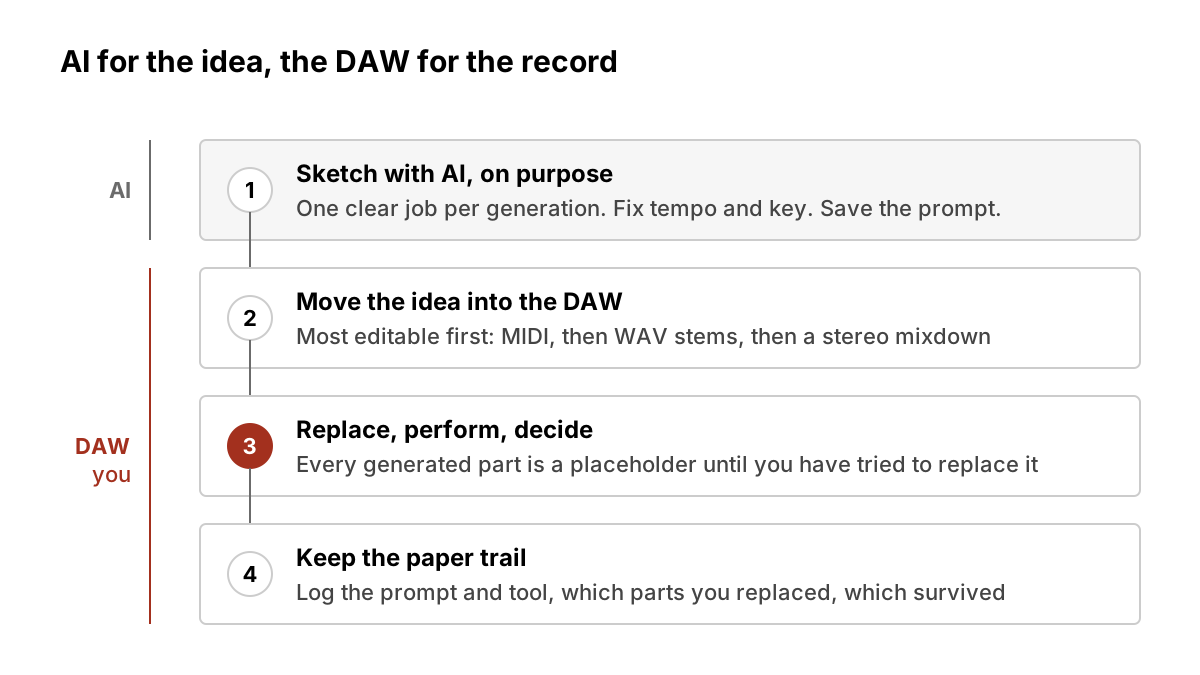
Stage 1: sketch with AI, on purpose
Treat a generation as a demo from a collaborator you can't call back. Before you prompt, decide what you want from it: a chord progression, a groove, a topline, an arrangement shape. One clear job per generation is easier to harvest than a finished-sounding song.
Practical habits:
- Fix the tempo and key up front if the tool lets you, and write them down. Suno's help page on tempo drift says songs in some older styles can drift, and recommends setting a manual BPM in Studio before exporting stems, then using the same tempo in your DAW.
- Generate several short variations rather than one long take, and keep only the bar or two you'd actually use.
- Save the prompt, tool name, version and date with each keeper. You'll want this later (see Stage 4).
Stage 2: move the idea into the DAW in the most editable form
The format you export decides how much of the idea you can still change. In rough order of editability:
- MIDI. Notes you can re-voice, re-time and play on your own sounds. Suno's download help says MIDI is available to Premier subscribers, for songs created in Suno Studio.
- Stems as WAV. Separate parts you can mute, chop and replace. Suno says WAV is for Pro and Premier subscribers, and that stem downloads are available when stems exist for a song. MP3 is available on all plans, but use it only as a reference.
- A stereo mixdown. Useful as a reference track and little else.
If all you have is audio, you can still pull the notes out. Ableton's manual on converting audio to MIDI describes three commands: Harmony for polyphonic audio, Melody for monophonic lines, and Drums for unpitched percussion. Its advice on source material applies to generated stems too: use isolated instruments (other parts in the clip will also be detected), uncompressed files rather than low-bitrate MP3s, and material with clear attacks, since swelling notes may be missed. You can adjust transient markers before converting to fix note positions.
We cover cleaning up drifting, noisy or out-of-phase stems in how to fix generated stems in your DAW, and the MIDI-first route in MIDI generators in your DAW.
Stage 3: replace, perform, decide
This is where the track becomes yours. A useful rule: every generated part is a placeholder until you've tried to replace it.
- Re-play the parts that carry the song. Use the extracted MIDI as a guide and record the bass, keys or topline yourself. Your timing and phrasing will usually beat the generator's, and you'll learn whether the idea holds up.
- Swap sounds. Put the MIDI on your own instruments and samples. A progression stops sounding like a preset the moment it's on a patch you chose.
- Rewrite the structure. Generators often produce plausible but generic arrangements. Cut, extend, add a break, move the hook earlier.
- Keep generated audio only where it earns it, such as a texture or a background layer you'd struggle to make. Keep the original generation on a muted track for comparison.
Then mix in the DAW as you would any record. AI-assisted mixing and mastering tools are a separate question from generation; DistroKid, for example, says on its AI credits page that pitch correction and AI-assisted mixing or mastering don't need an AI credit.
Stage 4: keep the paper trail
The hybrid workflow has a practical benefit beyond sound: it produces a clear record of human authorship. The US Copyright Office's January 2025 report on copyrightability says prompts alone don't make you the author of the output, but that your own expressive input that is perceptible in the result is yours, and that creative selection, arrangement or modification of generated material can be protected, decided case by case.
So keep a simple log per track: the prompt and tool for each generation, which parts you replaced, which generated parts survived, and your session files with dated takes. If the track goes to a distributor or a PRO, one honest sentence about what AI did will cover you everywhere. We walk through those filings in how to register and release an AI-assisted song.
A one-page version
- Decide what you want from the generator before you prompt.
- Set tempo and key in the generator; note them.
- Export MIDI if you can, WAV stems if not; MP3 only for reference.
- Convert key audio parts to MIDI from isolated, uncompressed stems.
- Re-play or re-voice every part that carries the song.
- Rearrange; keep generated audio only where it earns its place.
- Mix in your DAW.
- Log what was generated and what you made.
Doing it in one place
You don't have to move files between two apps. A browser-based DAW like Veena, made by the company that owns this site, describes itself as an AI DAW with an AI co-producer, MIDI and audio generation, a piano roll and mixer, and export to WAV, MP3, MIDI or stems. The same rule applies there: generate the sketch, then replace and perform the parts that matter. Every step above works with any generator and any DAW.
What we think
The fight over AI music is usually framed as all or nothing: either a machine made the song or a human did. Most working producers we see are somewhere in between, and the useful question is where the handover happens. We think it should happen early. AI is genuinely good at unsticking a session, and genuinely poor at the decisions that make a record yours: the feel of a bass line, the space before a chorus, which take to keep.
Exporting to MIDI and replacing the generated parts isn't a purity test. It's better production and a better legal position at once, because the parts you play are the parts that are clearly yours. The tools that serve artists best will be the ones that export cleanly and editably, not the ones that try to hand you a finished master. Judge generators on what you can take out of them.
Sources
- What types of files can I download?, Suno
- Fixing Tempo Drift, Suno
- Live Manual: Converting Audio to MIDI, Ableton
- Copyright and Artificial Intelligence, Part 2: Copyrightability, US Copyright Office, 29 Jan 2025
- What Are AI Credits?, DistroKid Help Center
- r/SunoAI AMA thread, archived snapshot, 14 Mar 2026
- Veena home page, Veena Studio
Sources
- What types of files can I download?, Suno (primary source). Accessed 24 Oct 2026.
- Fixing Tempo Drift, Suno (primary source). Accessed 24 Oct 2026.
- Live Manual: Converting Audio to MIDI, Ableton (primary source). Accessed 24 Oct 2026.
- Copyright and Artificial Intelligence, Part 2: Copyrightability, US Copyright Office (primary source). Accessed 24 Oct 2026.
- What Are AI Credits?, DistroKid Help Center (primary source). Accessed 24 Oct 2026.
- Veena home page, Veena Studio (primary source). Accessed 24 Oct 2026.
- r/SunoAI AMA: "Using studio more than Ableton now!" (archived snapshot), r/SunoAI via Sentinel mirror. Accessed 24 Oct 2026.
Researched with AI assistance, written and checked by WATMM Desk.
Published by the company behind Veena. Disclosures