Learn — By WATMM Desk —
Latency and buffer size explained: what to set when you record, and when you mix
Latency is the gap between playing a note and hearing it back. The buffer size you pick in your DAW is the biggest dial you control, and it trades delay against CPU headroom. Here is how the maths works, what ASIO and Core Audio actually do, when to reach for direct monitoring, and a simple two-setting routine for tracking and mixing.
Key facts
- The trade-off: Apple says smaller I/O buffers reduce input monitoring latency but need more processing power, while larger buffers ease the load and increase latency.
- The maths: one buffer lasts its size in samples divided by the sample rate, so 128 samples at 48 kHz is about 2.67 ms; Microsoft gives the same figure (2.66 ms) in its driver docs.
- Drivers: on Windows, ASIO lets an app send audio straight to the interface driver, bypassing the shared audio engine; on macOS, Core Audio is built into the OS and designed for low latency.
You sing a line and hear yourself a beat late in the headphones. You play a soft-synth part and the notes feel rubbery. That gap is latency, and in a home studio it is almost always something you can tune. This guide covers what latency is, the one setting that matters most (buffer size), what driver types such as ASIO and Core Audio do, and when to skip the computer entirely with direct monitoring.
Everything below is as we read the platform documentation on 24 Oct 2026. Menu names vary between DAWs and interfaces, so check your own manual for where each setting lives.
What latency actually is
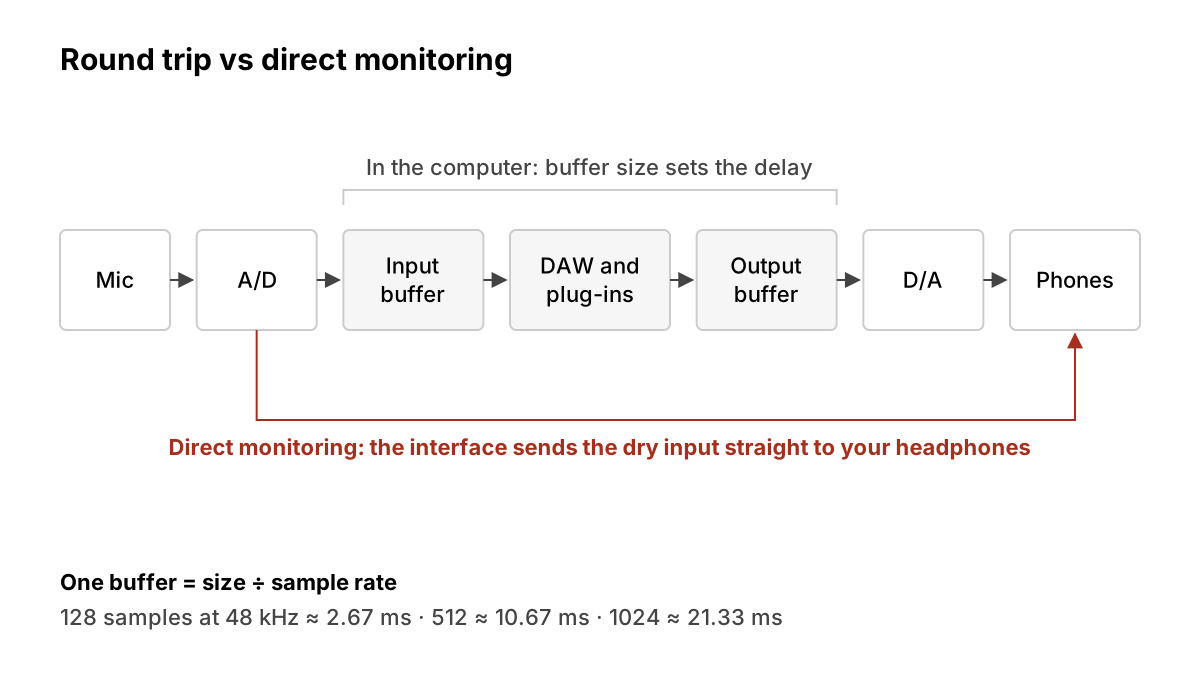
Microsoft's driver documentation defines audio latency as "the delay between that time that sound is created and when it's heard." It splits the path into capture latency (from the microphone into the app), render latency (from the app out to the speakers) and round-trip latency, which is what you feel when you monitor yourself through the computer. Microsoft says round trip is "roughly equal to render latency + capture latency."
So the delay you hear while tracking is not one number. It is the input side plus whatever processing your DAW does plus the output side, with the converters in your interface at each end. Apple's Logic Pro support article lists the parts you cannot change, including analogue-to-digital and digital-to-analogue conversion and your audio interface's own software, and the parts you can: buffer size, sample rate and plug-ins.
Sound On Sound's glossary puts the practical stakes plainly: the delay an interface introduces can run to several milliseconds and make it hard to play or sing in time with what you hear.
Buffer size: the dial you control
Your computer does not process audio one sample at a time. It collects a block of samples (the buffer), processes the block, and hands it on. A bigger block gives the CPU more time to finish its work, so you get fewer clicks and dropouts, but you wait longer for each block.
Apple states the trade-off directly: "Smaller buffer sizes require more processing power, which can cause system overload alerts. Larger buffer sizes require less processing power, but increase latency." Its advice for recording is to set the buffer to the lowest setting and, if overload alerts appear, raise it one step at a time. Logic shows the resulting latency figure right under the I/O Buffer Size menu, and most DAWs show something similar in their audio preferences.
The maths, so you can read the numbers
One buffer lasts its size divided by the sample rate. At 48 kHz:
| Buffer (samples) | One buffer at 48 kHz | One buffer at 96 kHz |
|---|---|---|
| 64 | 1.33 ms | 0.67 ms |
| 128 | 2.67 ms | 1.33 ms |
| 256 | 5.33 ms | 2.67 ms |
| 512 | 10.67 ms | 5.33 ms |
| 1024 | 21.33 ms | 10.67 ms |
These are our own calculations, and Microsoft's documentation uses the same arithmetic: it describes 128 samples as "2.66ms@48kHz" and 480 samples as "10ms@48kHz". Remember that this is one buffer. The round trip includes an input buffer, an output buffer and conversion, so the figure your DAW reports for round-trip latency will be larger than the single-buffer number in the table.
Does a higher sample rate help?
A little, and at a cost. Apple says "higher sample rates result in less input monitoring latency", because the same number of samples passes in less time. It also notes that higher rates make larger files, put more load on the processor and disk, and ask more of your plug-ins. For most home sessions that is a poor trade just to shave latency; choose your sample rate for the project when you create it, as Apple recommends, and use the buffer as your latency control. Our guide to sample rate and bit depth covers what to record at.
Plug-ins add their own delay
Some plug-ins need to look ahead at the audio before they act. Apple singles out "dynamics plug-ins with look-ahead functions" as a source of extra monitoring latency. Logic's answer is Low Latency Mode, which routes audio around latency-inducing plug-ins while you record. Other DAWs have their own versions of this switch. The simple rule: keep linear-phase EQs, look-ahead limiters and heavy mastering chains off while you track, and add them when you mix.
Drivers: ASIO, Core Audio and the rest
The driver is the software layer between your DAW and the interface, and it decides how small a buffer you can actually run.
Windows. By default, Windows routes audio through a shared audio engine. Microsoft's documentation says that before Windows 10 this engine always used buffers of about 10 ms, and that from Windows 10 the buffer size is defined by the audio driver; even so, by default "all applications in Windows 10 and later will use 10-ms buffers" unless an app asks for smaller ones. That is fine for video calls and far too slow for playing an instrument through your computer.
Microsoft names ASIO (Audio Stream Input/Output) as "another popular alternative for applications that need low latency." With a third-party ASIO driver installed, "applications can send data directly from the application to the ASIO driver," skipping the shared engine. Microsoft also notes the catch: the application has to be written to talk to ASIO, and ASIO uses exclusive mode, so other apps generally cannot use that device at the same time. In practice that means installing the ASIO driver your interface maker supplies and selecting it in your DAW's audio settings.
macOS and iOS. Apple describes Core Audio as "the digital audio infrastructure of iOS and OS X," "tightly integrated" into the operating system "for high performance and low latency." Audio passes to and from hardware through a Hardware Abstraction Layer that gives apps a consistent interface to any device. On a Mac you pick the device in your DAW and set the buffer there; if your interface ships its own software, check its manual too.
One more trap from Apple's article: Bluetooth output adds latency you cannot tune away. Apple's advice is to use Bluetooth devices "for mixing or listening only," never for recording.
Direct monitoring: take the computer out of the loop
If you only need to hear what you are recording, not a plug-in on it, you do not have to fight the buffer at all. Many interfaces have what Sound On Sound calls a "zero-latency" or "latency-free" monitoring function, which passes the input signal straight to the headphone output and mixes it with playback from the computer. Your signal still goes to the DAW to be recorded; you just hear the copy from the interface, not the one that has made a round trip through the computer.
Two things to know:
- You will not hear your plug-ins. The direct signal is the dry input. If a singer needs reverb or pitch effects to perform, you need low-latency software monitoring instead, or an interface with onboard effects.
- Mute the record track's monitoring in the DAW. Otherwise you hear the direct signal and the delayed computer signal together, which sounds like a short echo or a thin, phasey voice. How you do this varies: in some DAWs you turn input monitoring off on the track, in others you mute the track.
A two-setting routine
This is our working routine, not a rule from any manufacturer:
- Tracking: lowest buffer that runs without clicks (often 64 or 128 samples on a modern machine), latency-heavy plug-ins bypassed or a low-latency mode on. Use direct monitoring for vocals and guitars whenever the performer does not need effects in their ears.
- Mixing: raise the buffer to 512 or 1024. Nothing is being played live, so the delay does not matter, and the extra headroom lets you run more plug-ins without dropouts.
- Write the two numbers down next to your interface. Switching between them should take ten seconds, not a forum search.
If you are setting up a vocal chain, our guide to recording vocals at home covers mic, room and gain; and if you track on headphones, mixing on headphones has the other half of that setup.
What we think
Latency is presented as a hardware problem, and the industry likes it that way, because the fix it sells is a faster interface or a new computer. For most artists it is a settings problem. A few milliseconds of delay is not what ruins a take; a buffer left at 1024 from last night's mix session is. The single most useful habit is boring: one buffer for tracking, one for mixing, and switching every time.
We also think direct monitoring is underused because it feels like a step backwards. It is not. A singer who hears themselves dry and on time will usually give a better performance than one who hears a lush reverb a fraction late, and a performance is the thing you cannot fix later. Effects can be added afterwards; timing and feel mostly cannot.
Finally, a plea to software makers: show the real round-trip figure, in milliseconds, in plain sight, and warn when a look-ahead plug-in is about to add delay to a record-armed track. Artists should not need to understand driver architecture to know why their playing feels late.
Sources
- Manage input monitoring latency in Logic Pro for Mac, Apple Support (primary source). Accessed 24 Oct 2026.
- Low Latency Audio, Windows drivers, Microsoft Learn (primary source). Accessed 24 Oct 2026.
- What Is Core Audio? (Core Audio Overview), Apple Developer Documentation Archive (primary source). Accessed 24 Oct 2026.
- Zero Latency Monitoring (glossary), Sound On Sound. Accessed 24 Oct 2026.
Researched with AI assistance, written and checked by WATMM Desk.